All walkthroughs · Walkthrough · 1 · Measuring
Measure it from the map, then price it.
Most of the time lost on a quote is getting the measurements in. This is how PriceM8 does it from the map, or from a sketch when the map can't help.
Click round the edge and the area is in the quote.
A real run through the app: a 51.5 m² block paving area measured from the satellite view, the kerb added, and the price worked out. No tape measure for the first number, and no figures copied off the back of an envelope.
- Step 1
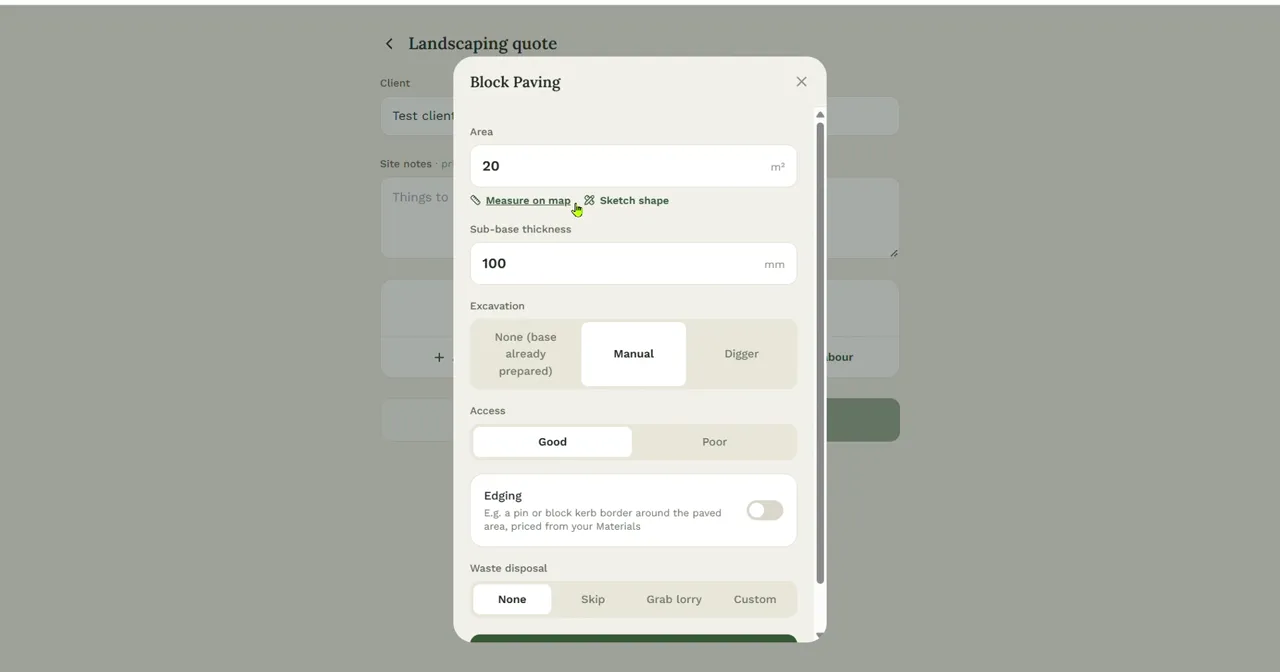
Add the task, then tap Measure on map
Start a Landscaping quote, add Block Paving, and tap Measure on map under the Area box. Type an address or postcode in the search bar to jump to the site.
- Step 2
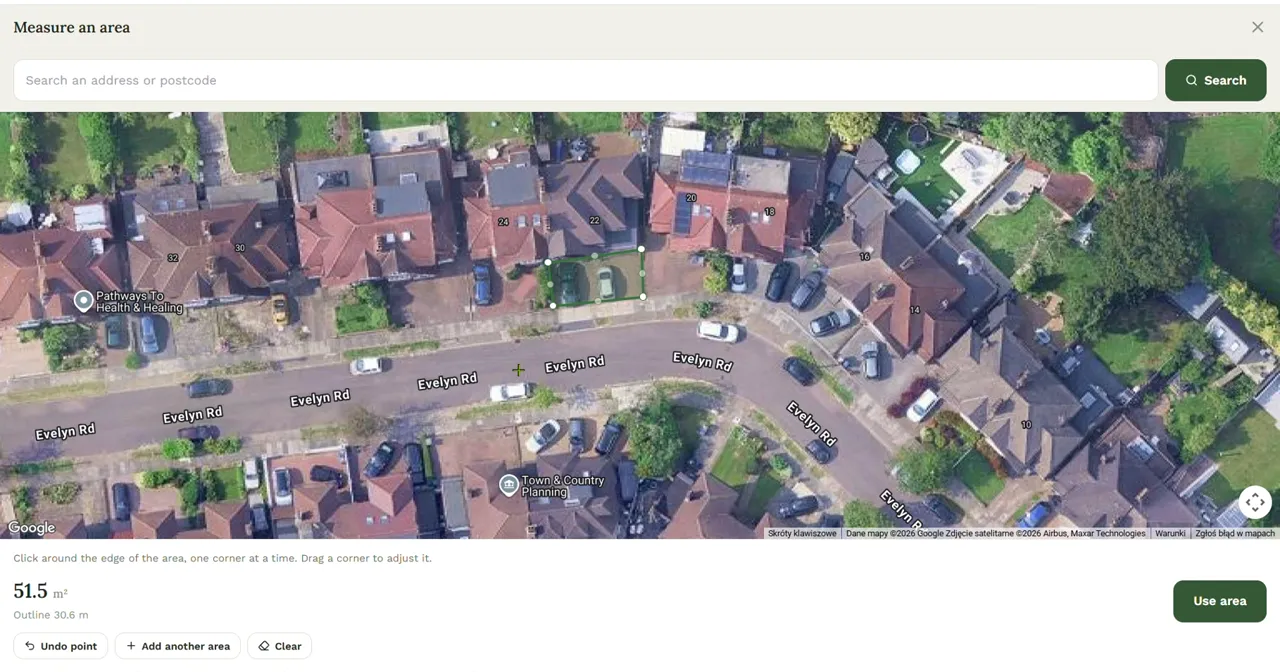
Click each corner
Click round the edge one corner at a time. The area and the length of the outline build up as you go, 51.5 m² and 30.6 m here, and you can drag any corner to adjust it.
- Step 3
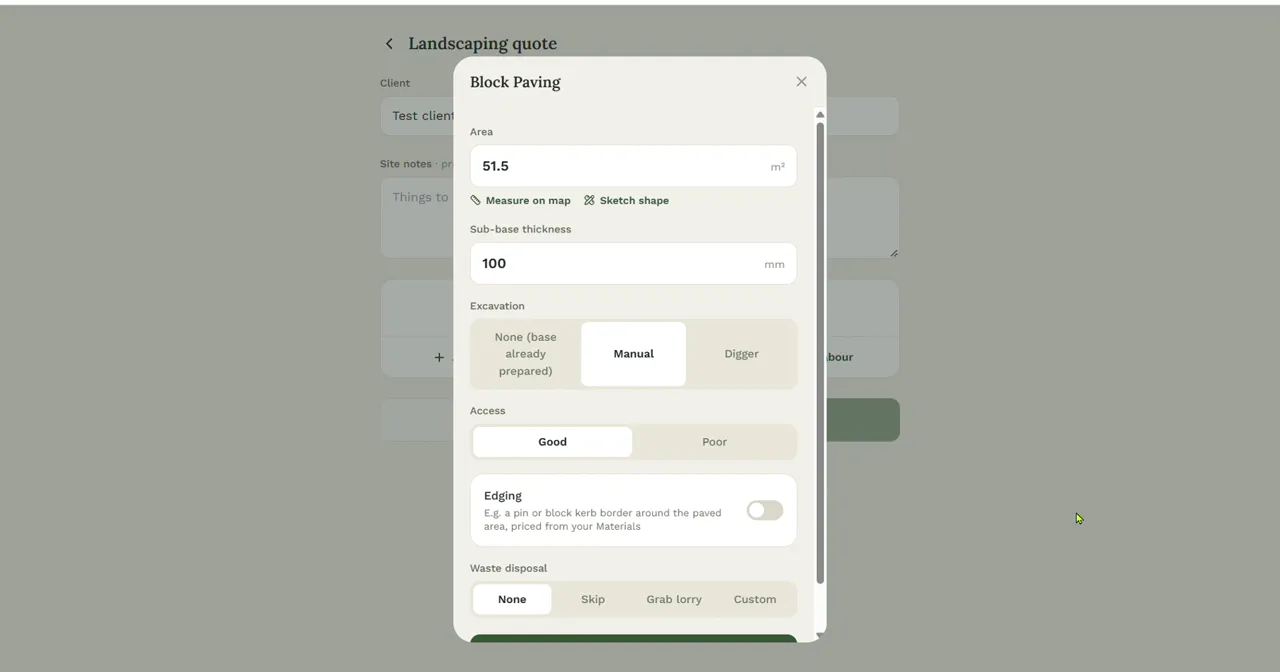
Use the area
Tap Use area and the figure drops straight into the task. Sub-base depth, how it will be dug out and access are all there to set.
- Step 4
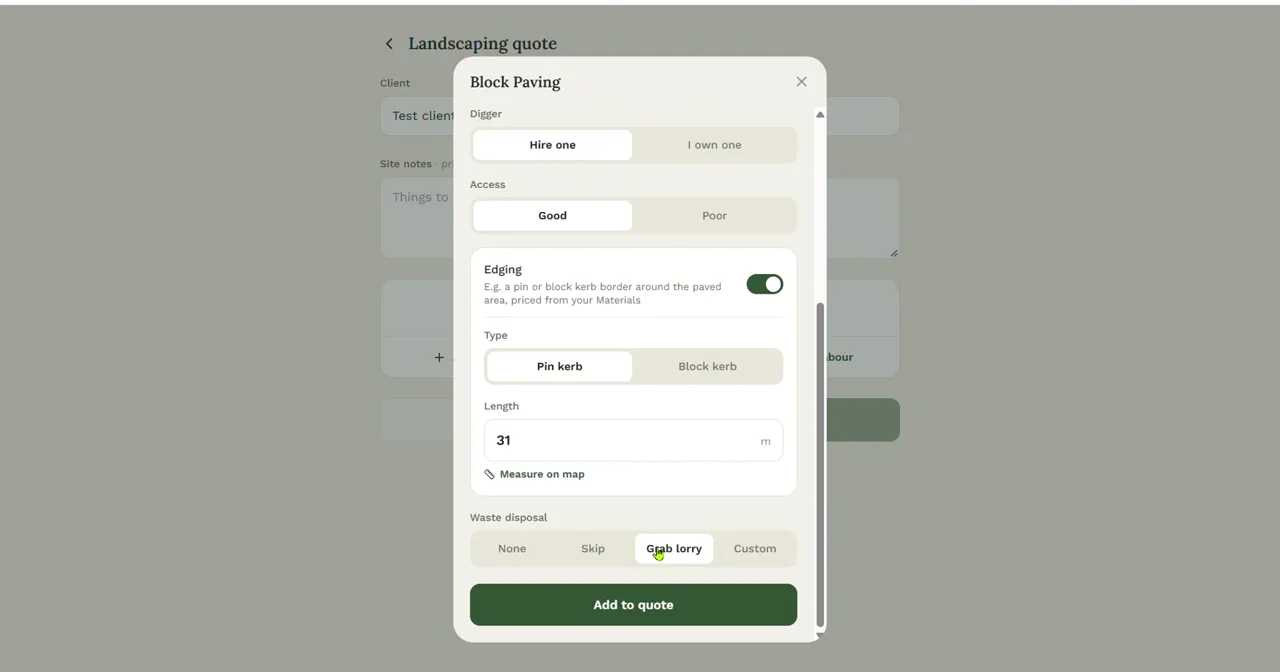
Add the kerb
Switch on edging and the kerb length has its own Measure on map button. Pin kerb is priced from your own Materials list, so a change there changes the quote.
- Step 5
The line on the quote
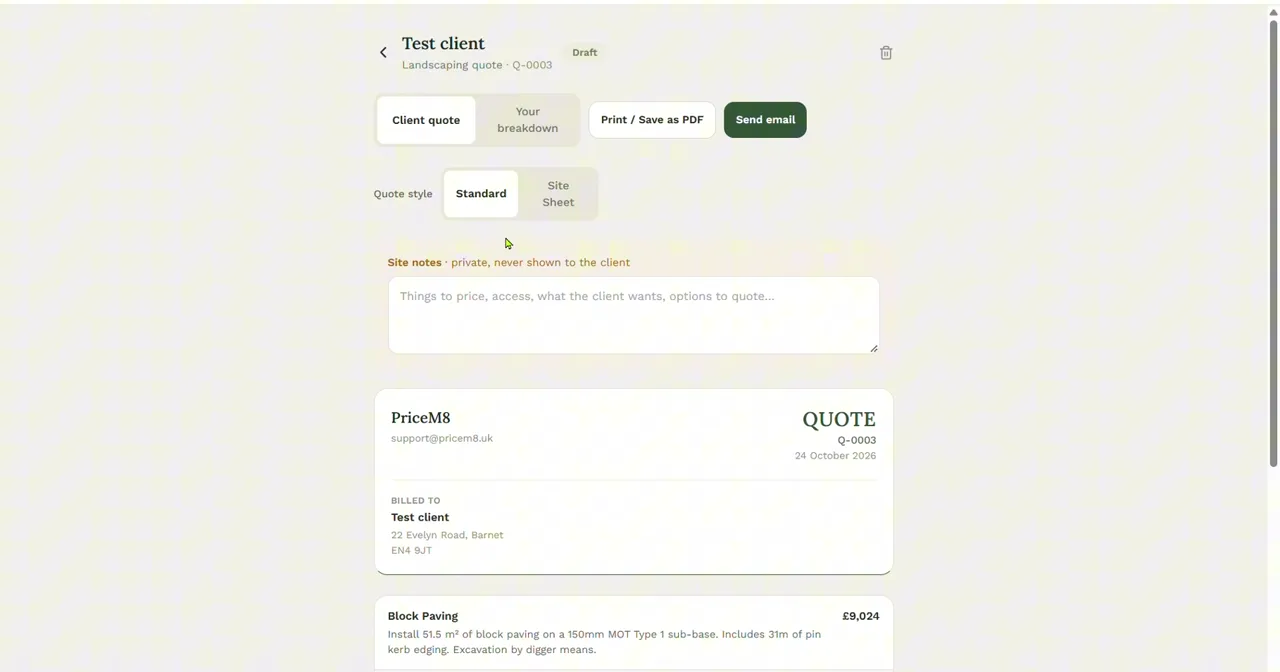
The task becomes a line your customer can read: "Install 51.5 m² of block paving on a 150mm MOT Type 1 sub-base. Includes 31m of pin kerb edging. Excavation by digger." That is £9,024 for the paving, plus £438 for the grab lorry, before VAT.
The app says it itself: satellite images can be a few years old and slightly out of place, so check measurements on site before you price a job. The map gets you to a sensible first number fast. The tape measure confirms it.
Trees in the way? Sketch the shape.
Some jobs can't be measured from above: the view is blocked, or it isn't built yet. Next to Measure on map is Sketch shape. You walk round the edge and type in what you find.
- Step 1
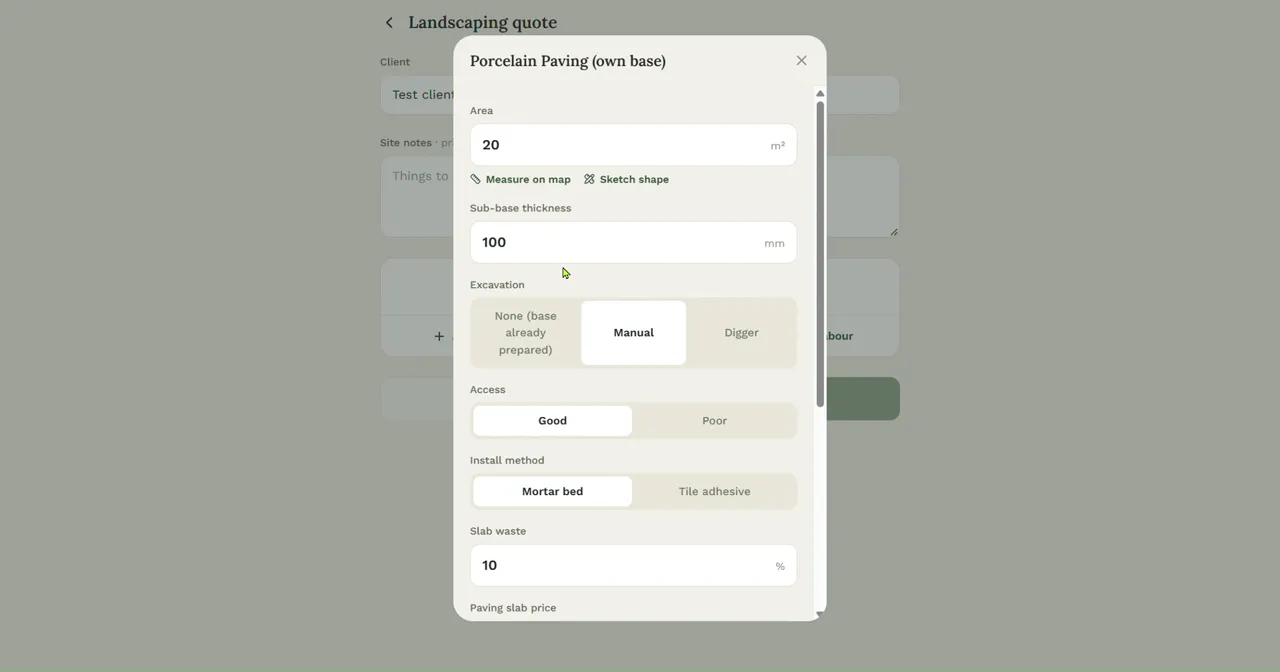
Tap Sketch shape
It sits right beside Measure on map under the Area box on any task that is priced by the square metre.
- Step 2
Walk round the edge
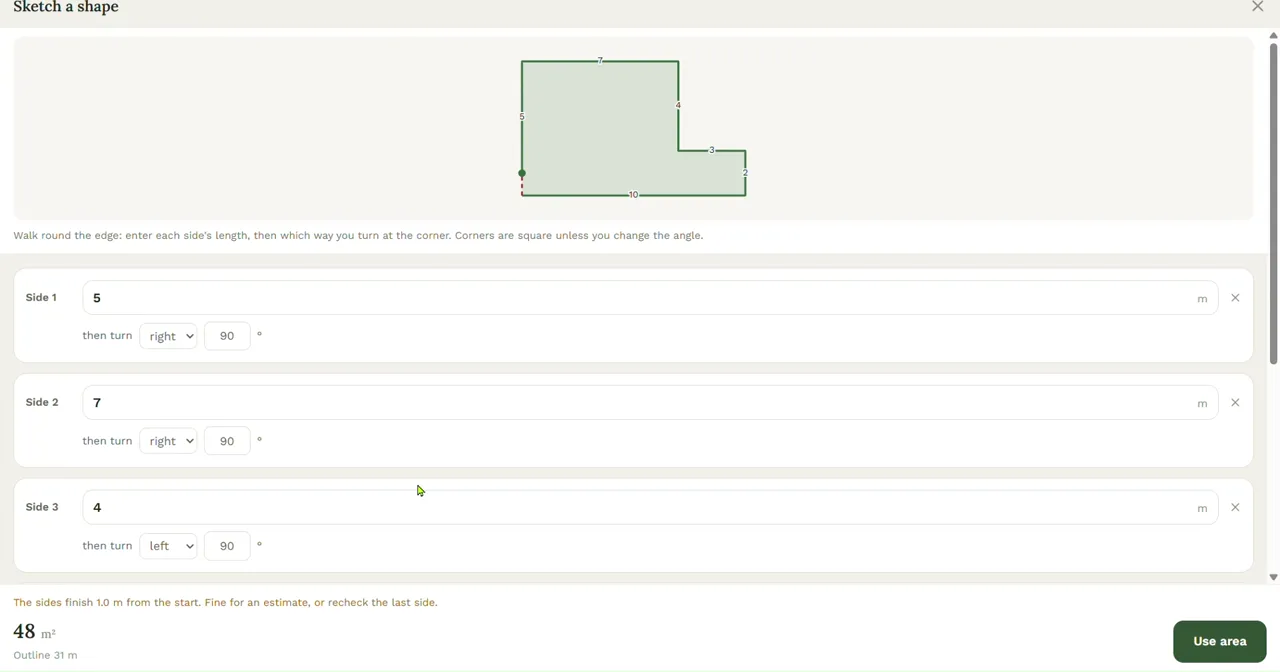
Enter each side's length, then which way you turn at the corner. Corners are square unless you change the angle. The shape draws itself and the area updates as you go: 48 m² for this L-shaped patio. If the sides don't quite meet up, it tells you how far out they finish so you can recheck the last measurement.
Measure the next one this way.
Put a job you've already done through it. If the area and the price land close to what you found on site, you'll know what it is worth to you.